What Internet Speed Do You Need for IPTV? Bandwidth Guide
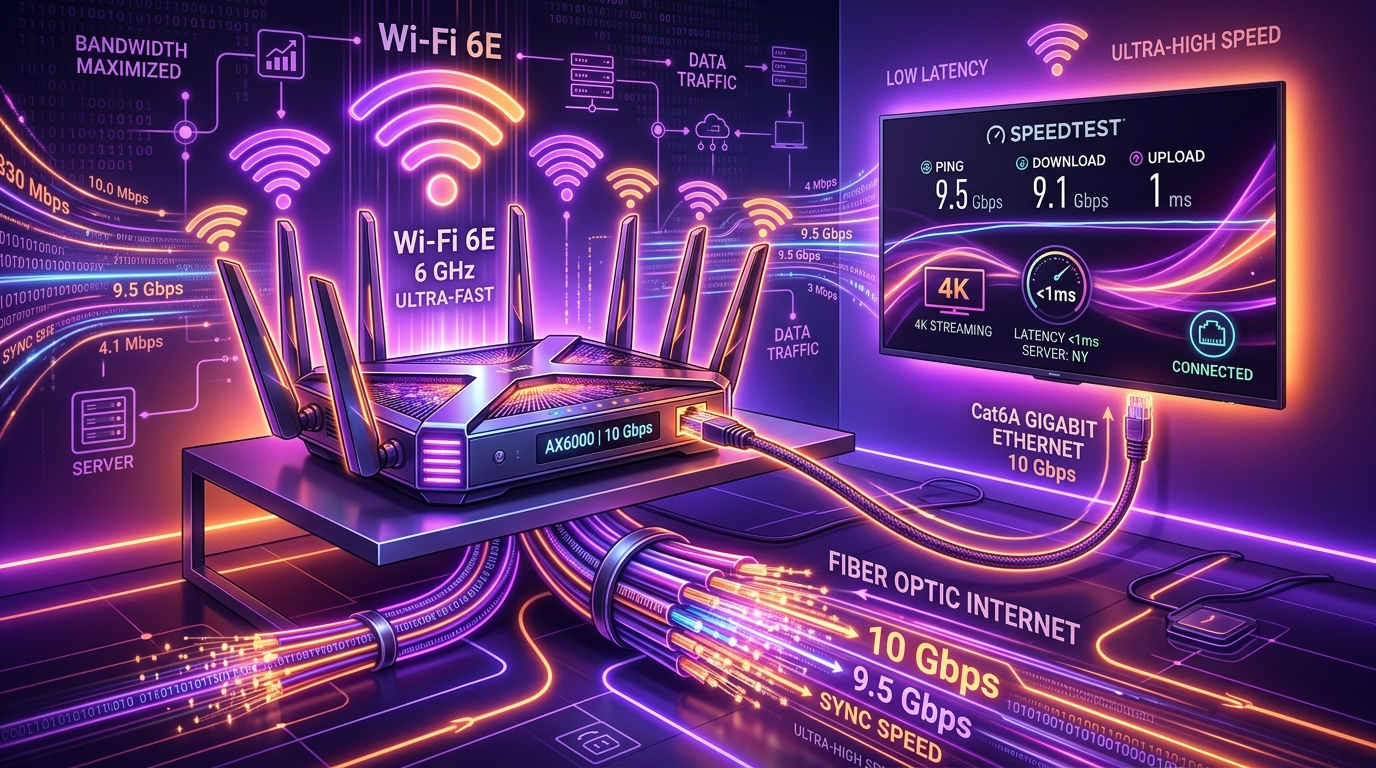
A common question among IPTV users is how much internet speed is necessary for buffer-free live TV streaming. While raw download speed is important, network stability, latency (ping), and local Wi-Fi congestion play equally vital roles in video playback quality.
This guide provides accurate bandwidth recommendations and technical tips to optimize your home network for live IPTV streaming.
1. Minimum Internet Speed Recommendations
Different stream resolutions consume varying amounts of continuous bandwidth. Here are general speed guidelines per active device:
| Stream Resolution | Recommended Bandwidth per Device | Minimum Speed Requirement |
|---|---|---|
| SD (Standard Definition) | 5 Mbps | 3 Mbps |
| HD (720p / 1080p Standard) | 15 Mbps | 10 Mbps |
| Full HD 60fps (Live Sports) | 25 Mbps | 15 Mbps |
| 4K Ultra HD Streams | 40+ Mbps | 25 Mbps |
Note: If multiple household members stream video, play online games, or download large files simultaneously, total home internet speed should account for all combined activity.
2. Why Download Speed Alone Does Not Guarantee Buffer-Free Streaming
Having a 300 Mbps internet plan does not automatically prevent buffering if local network issues exist. Key network parameters include:
Connection Latency (Ping):
Live IPTV streams rely on real-time data packets. High latency or packet loss causes dropped frames and stuttering, regardless of peak speed.
Wi-Fi Signal Degradation:
Physical distance, thick walls, and neighboring wireless networks interfere with 2.4GHz Wi-Fi signals. Connecting via 5GHz Wi-Fi or Ethernet provides far greater stability.
ISP Throttling:
Some Internet Service Providers dynamically throttle high-bandwidth video traffic during peak evening hours.
3. Practical Steps to Improve Network Performance for IPTV
- Use Ethernet Cables: Connect your primary streaming device directly to your router using a Cat6 cable to eliminate Wi-Fi latency.
- Restart Network Equipment: Periodically reboot your modem and router to clear RAM cache and establish fresh connection channels.
- Disconnect Unused Devices: Pause heavy background downloads or cloud backups on other household devices while watching live broadcasts.
Pairing an optimized home network with reliable SMARTSGI subscription plans ensures smooth access across all supported devices. Check our installation guides for device setup advice or visit our FAQ section.