IPTV Black Screen but Audio Works: Causes and Fixes
One of the most specific IPTV playback issues occurs when a channel opens and plays audio clearly, but the screen remains completely black. This symptom indicates that your streaming device is successfully receiving the audio track, but failing to decode or render the video stream.
Here is a step-by-step troubleshooting guide to solve the "black screen with audio" issue across Firestick, Android TV, Smart TVs, and Apple TV.
1. Change Video Decoder Settings in Your Player App
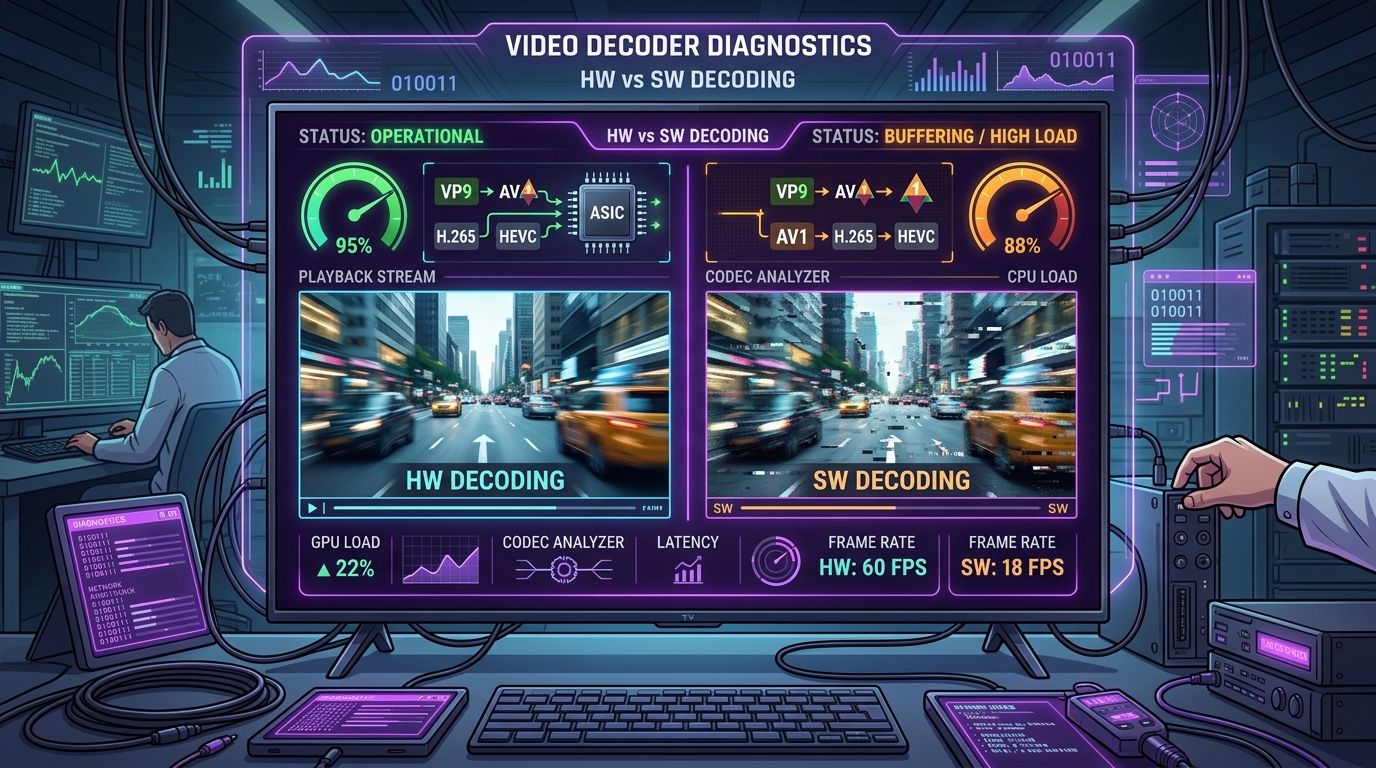
The primary cause of black screen with audio is a mismatch between the stream's video codec (such as H.265/HEVC or H.264) and your player app's decoder engine.
How to Fix:
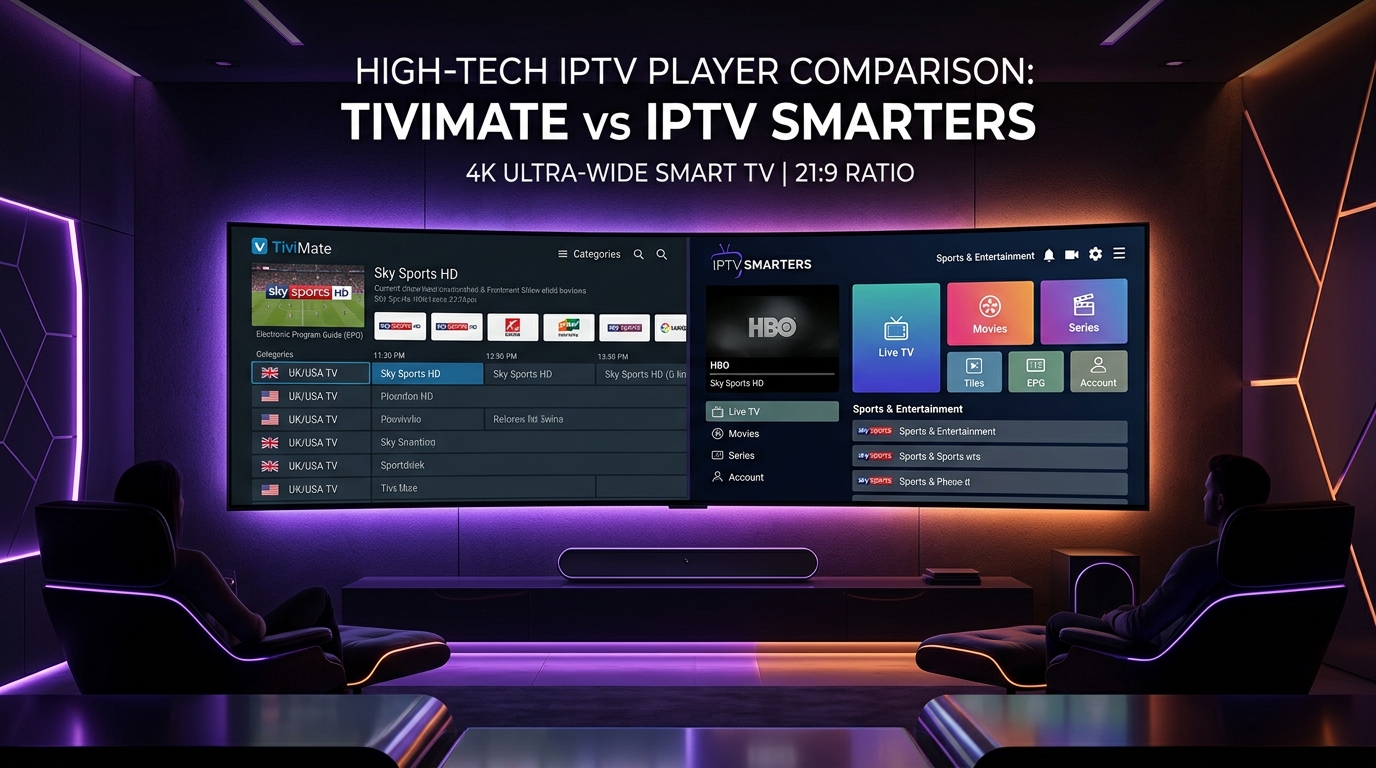
- Open your player app settings (TiviMate, IPTV Smarters, or XCIPTV).
- Go to Video Decoder or Playback Settings.
- Switch the primary decoder from Hardware (HW) to Software (SW) or Hardware+ (HW+).
- Return to the channel and test playback. Software decoding uses CPU processing to render video codecs that your GPU hardware decoder struggles with.
2. Change Built-in Media Player Engine
Many IPTV player apps allow switching between internal media engines:
- In IPTV Smarters Pro, go to Settings > Player Selection and switch from Built-in Player to VLC Player or EXOPlayer.
- In XCIPTV, switch between EXO Player and VLC Player.
- External video player apps (like VLC or MX Player) feature extensive codec support that resolves rendering errors.
3. Check Screen Resolution and Refresh Rate Matching
If your streaming stick is configured to output a display resolution or refresh rate unsupported by your TV hardware (e.g., forced 4K 60Hz on a 1080p display), video rendering can fail while audio continues to play.
How to Fix:
- Go to your streaming device settings (e.g., Firestick Settings > Display & Sounds > Display).
- Set Video Resolution to Automatic so the device matches your TV's native capabilities.
4. Clear App Cache and Restart Device
Stale buffer cache or temporary memory corruption can lock up video rendering components.
- Go to device Settings > Applications > Manage Installed Applications.
- Select your IPTV player app and click Clear Cache (do not click Clear Data unless you want to re-enter credentials).
- Restart your streaming device and router.
If video decoding issues persist across multiple channels, review our device setup guides or contact SMARTSGI support for assistance.