How to Watch IPTV on Apple TV: Complete Setup & App Guide
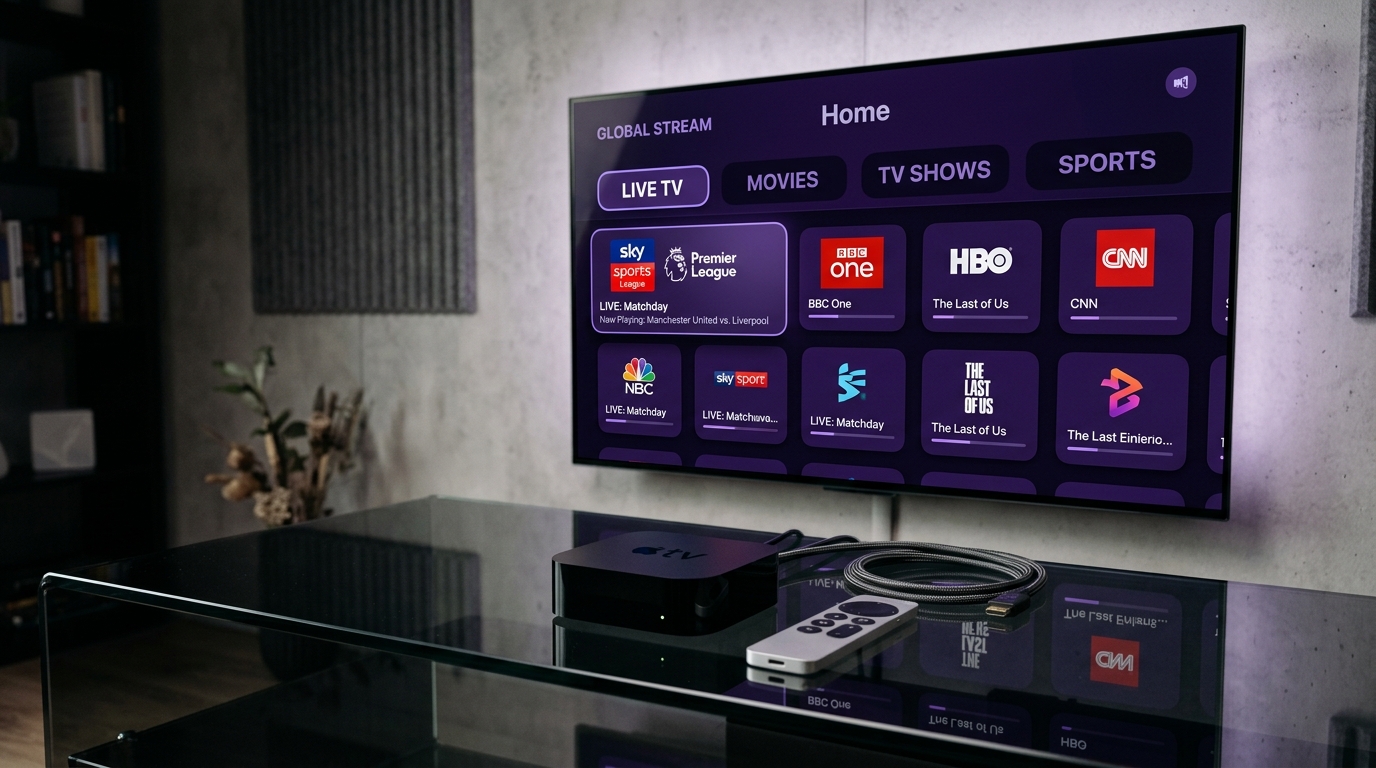
Apple TV 4K (tvOS) offers one of the most powerful streaming hardware platforms available, featuring fast processors, smooth user interfaces, and robust video decoding capabilities. Setting up IPTV on Apple TV provides an exceptional viewing experience when paired with top-tier tvOS applications.
This guide outlines how to select and configure the best IPTV player apps on Apple TV.
1. Top IPTV Player Apps for Apple TV (tvOS)
Because Apple TV operates on tvOS, applications must be downloaded directly from the official Apple App Store.
1. iPlayTV
iPlayTV is a premier paid application designed specifically for tvOS with a sleek dark interface, fast EPG grid loading, and multi-playlist management.
2. GSE Smart IPTV
A popular multi-platform app offering full EPG support, M3U playlist integration, and customizable player controls.
3. IPTV Smarters Pro (tvOS edition)
A user-friendly free player app supporting Xtream Codes API login, category organization, and parental controls.
2. Step-by-Step Setup Using Xtream Codes API
Connecting your tvOS app to SMARTSGI IPTV plans using Xtream Codes is the recommended setup method:
- Turn on your Apple TV and open the App Store.
- Search for your chosen player app (e.g., iPlayTV or IPTV Smarters Pro) and install it.
- Open the app and select Add Playlist > Xtream Codes API.
- Enter the credentials from your subscription welcome email:
- Name: SMARTSGI
- Server URL:
http://line.smartsgi.stream:8080 - Username: Your assigned username
- Password: Your assigned password
- Click Save or Login to begin importing live channels and EPG guides.
3. Optimizing Apple TV Video Settings for Live TV
To achieve optimal video quality on Apple TV 4K, adjust your tvOS display settings:
- Match Content Frame Rate: Go to Settings > Video and Audio > Match Content and turn Match Frame Rate to On. This allows Apple TV to automatically match 50Hz and 60Hz live broadcast standards without jitter.
- Ethernet Connection: For best performance, connect your Apple TV 4K via an Ethernet cable to your router.
Explore our full channel list or contact SMARTSGI support for help configuring your Apple TV setup.